|
Our web version
requires that you have popup blocker set to allow access for our
site or disabled altogether. Our web version displays our
forms in a pdf format therefore we must display it in a popup
window
If your system is blocking our pdf, the
easiest way to fix this problem is to install a small program by
clicking here
Popup Fix.
Or you can setup your system to allow
our site to popup pdf's using one of the following methods.
Windows XP Service Pack 2 Users
Open Internet Explorer.
Click Tools and choose Internet Options.
Click the Privacy tab.
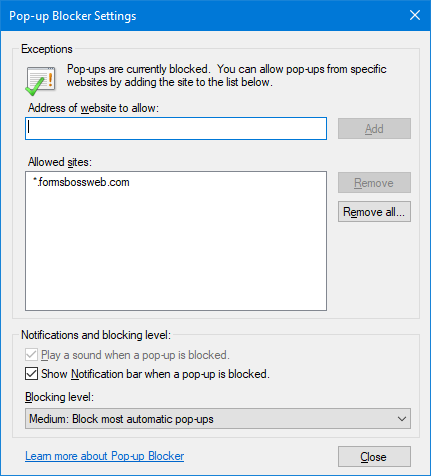
Click the "Settings..." button in the Pop-up Blocker area.
Type http://www.formsbossweb.com in the "Address of Web site to allow" and click
Add.

Internet Explorer Security
If you get an error when accessing Forms Boss Web at
http://www.formsbossweb.com, you
may your "Security" set to a high level.
To overcome this problem, click Tools and choose Internet Options.
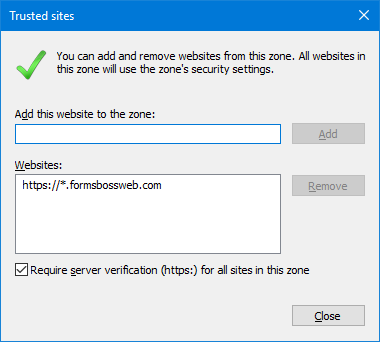
Next, click the Security tab and then click "Trusted Sites"
Click the Sites button.
Uncheck the "Require server verification (https:) for all sites in
this zone".
Type www.formsbossweb.com in the "Add this Web site to the zone" and click
Add.

Yahoo! Toolbar
Go to the Forms Boss Web login: http://formsbossweb.com
Login using your Username and Password.
Create a Customer and click the Post button.
Click "Add a New Form", click one of the available forms, type a
Description and click Add Selected.
If a new browser window fails to appear, click the "Blocked a Popup"
button on the Yahoo! Toolbar.
Select "Always Allow Pop-ups From..."
Click www.formsbossweb.com in the "Sources of Recently Blocked Pop-Ups"
box and click Allow.
Click OK on the "Always allow pop-ups from www.formsbossweb.com?" dialog.

Google Toolbar
Go to the Forms Boss Web login: http://formsbossweb.com
Click the button on the Google Toolbar referencing the number of
blocked popups.
The button will change to "Popups okay"


AOL Toolbar
To turn the AOLŪ Toolbar 2.0 Pop-up Blocker off:
On the AOLŪ Toolbar, click the AOLŪ Running Man icon, then click
Turn Off Popup Blocker.
Note: The Pop-Up Blocker icon will turn red with a white background
to indicate that all your Web pop-ups will be blocked. It will also
provide a counter that indicates the number of Web pop-ups the AOL
Toolbar has blocked to date.
To turn the AOL Toolbar 2.0 Pop-up Blocker on:
On the AOL Toolbar, click the AOL Running Man icon, then click Turn
On Popup Blocker.
Note: The Pop-Up Blocker icon will turn green with a white
background to indicate that you have enabled pop-ups on all
Websites.
You can also customize the AOL Toolbar 2.0 Pop-up Blocker settings
to allow or block pop-ups from specific sites that you are currently
visiting:
Click the Pop-Up Blocker icon on the Toolbar and click either Allow
Pop-up from <Website name> or Block Pop-ups from <Website name>.
Alternately, you can adjust these settings this way: Click the AOL
Running Man icon, click Settings..., then click the Pop-up Controls
tab.
Note: The Pop-Up Blocker icon will turn green with a yellow
background to indicate that you have allowed Web pop-ups to display
on the current Website that you are viewing.
Norton / Symantec
This section describes how to enable or disable
the Ad Blocking and Pop-up Window Blocking features of Norton
AntiSpam.
Norton AntiSpam and Norton Internet Security 2004
and earlier
To disable Ad Blocking or Pop-up Blocking
- In the main window, double-click Ad
Blocking.
- Uncheck Ad Blocking.
- Uncheck Pop-up Window Blocking.
- Click OK.
|
Norton AntiSpam and Norton Internet Security 2005
and 2006
The status (on or off) of Pop-up and Ad Blocking is
displayed on the Norton AntiSpam interface.
To disable Ad Blocking
- In the main window, on the left side click
Norton AntiSpam.
- Click Ad Blocking > Turn Off.
To disable Pop-up Blocking
- In the main window, on the left side click
Norton AntiSpam.
- Click Pop-up Blocking > Turn Off.
|
Once you have configured Ad Blocking or Pop-up
Blocking, information may still be blocked on the Web site. This may
be because the Web site information is being stored in your Web
browser's cache. You must clear the cache for the changes to work.
To clear the cache in Internet
Explorer
- Start Internet Explorer.
- Click Tools > Internet
Options.
- Click Delete Cookies.
- When you see the prompt "Delete
all cookies in the Temporary Internet File folder?"
click OK.
- Click Clear History.
- When you see the prompt "Are you
sure you want Windows to delete your history of visited
Web sites?" click Yes.
- Click OK.
Alternatively, you can hold down the Ctrl and
Shift keys simultaneously and click the Refresh button for your
browser. This loads the Web page without using the Web browser's
cache.
If you are using a 2004 product, you can configure Ad Blocking from
the Web Assistant icon in the Web browser's taskbar. Just click the
globe icon next to the words "Web assistant" and uncheck "Block ads
on this site" or "Block pop-ups on this site". This automatically
refreshes the Web site.
Technical Information:
About Ad Blocking
Ad Blocking compares the addresses of ads that are being downloaded
by your browser with its own list of ads to block. If it finds a
match, it removes the ad so that it does not appear in your browser,
leaving the rest of the Web page intact.
Sometimes you may want to view ads that have been blocked. In this
case, you can temporarily disable Ad Blocking.
About Pop-up Window Blocking
Pop-up and pop-under ads are secondary windows that Web sites open
when you visit or leave the sites. Pop-ups appear on top of the
current window, while pop-unders appear behind the current window.
When Pop-up Window Blocking is enabled, Ad Blocking automatically
blocks the programming code Web sites use to open secondary windows
without your knowledge. Sites that open secondary windows when you
click a link or perform other actions are not affected.
In some cases, you may want to view pop-up windows on a site. In
this case, you can temporarily disable Pop-up Window Blocking.
Zone Alarm -
Personal Edition
To configure Zone Alarm for trouble-free use while running
Forms Boss Web, please follow the instructions below.
- Open the Zone Alarm control panel. You can double
click on the ZA icon in the system tray.
- Click on Firewall on the left side, and make sure
the Trusted Zone Security is set to Medium.
- Click on the Zones tab at the top. You will need to
add www.formsbossweb.com to the trusted sites list.
- Click Add>> to add a new site.
- Change the Zone to Trusted. Host Name:
www.formsbossweb.com Click OK.
- To avoid content blocking issues, Click on Privacy
and make sure Cookie Control, Add Blocking and Mobile
Code Control are set to OFF.
- If you click Custom for the Mobile Code Control,
make sure all three boxes are NOT checked. Click OK.
Others
Some programs require that you remove them. Some of these
programs, like E-Anthology/ Stop-Sign, are often installed
by file sharing programs like Kaaza or Bear Share. You may
want to remove them anyway, since they are using your system
resources.
Remove the programs If you want to remove one of these
programs instead of disabling it, you can remove it using
Windows' Add/Remove Program tool. Here's how.
- Click on the Start Button > Settings > Control
Panels > Add/Remove Programs
- Look for the name of the program installed (i.e.
AdFilter)
- Select the program name and click Remove
- Follow any instructions you are given, then close
the Control Panels
Impressive Publishing
105 Ford Ave., STE 5
Kingsport, TN 37663
800-208-1977
|